
wddrive-maintain-cli
Overview
wdd-maintain-cli is a headless command-line tool for device maintenance: it discovers WD DRIVE drives, updates firmware, and reads / writes / persists the CAN ID, baudrate and controller protocol. Its capabilities match the Maintenance tab of wddrive-studio, making it a good fit for servers, CI and remote terminals.
It ships with the wddrive-studio installer, so the site product name in this page’s title is wddrive-maintain-cli, while the actual command you type is wdd-maintain-cli.
The command has two modes:
- Interactive TUI: run it with no subcommand to enter a full-screen interface and drive discovery, updates and settings with the keyboard.
- One-shot commands: pass a subcommand to perform a single operation and exit — handy for scripts or manual troubleshooting.
The transport is chosen by platform:
- Linux: connects directly over SocketCAN (e.g.
can0). - Windows / macOS: connects directly to a candleLight / gs_usb adapter over gs_usb, with an interface name like
GS_USB_<last 8 of serial>.
Install and Run
wdd-maintain-cli is installed together with the wddrive-studio package. After installation, verify it from a terminal:
wdd-maintain-cli --version
wdd-maintain-cli --help
Linux: bring up the CAN interface
Before reading devices, bring up the CAN interface at the baudrate the drive uses (WD DRIVE firmware typically uses 1 Mbit/s):
sudo ip link set can0 up type can bitrate 1000000
Use ip -details link show can0 to confirm the state and bitrate.
Windows: bind WinUSB to the adapter
Adapters such as candleLight that support WCID get WinUSB installed automatically. If it is not installed automatically, use Zadig to bind interface 0 of the device to WinUSB. Without it the device still lists, but opening it fails and suggests Zadig.
macOS: no extra driver
macOS uses candleLight / gs_usb adapters directly over gs_usb; no extra driver is required.
Global Options
Every one-shot command accepts these global options:
| Option | Description |
|---|---|
--interface <name> |
CAN interface to use; defaults to the first available one. |
--baudrate <kbps> |
Host baudrate in kbps; defaults to the driver default and is ignored on Linux SocketCAN. |
--firmware-dir <path> |
Firmware directory; defaults to wddrive/wddrive-studio/firmwares under the system data directory. |
--lang <zh-CN|en> |
Interface language; defaults to the local config, then zh-CN. |
--wait <seconds> |
Seconds to wait for a device to appear or for information to be fetched; default 10. |
wdd-maintain-cli --interface can0 --wait 15 scan
wdd-maintain-cli --lang en interfaces
Enumerate Interfaces and Discover Devices
List the currently available CAN interfaces:
wdd-maintain-cli interfaces
Discover devices and print the device table:
wdd-maintain-cli scan
The output first shows the number of locally loaded firmware files and the directory, then the GET_INFO and three settings read from each device. The device table columns are:
| Column | Meaning |
|---|---|
UUID |
Unique device identifier (hex). |
Node |
Node ID. |
Version |
Firmware version. |
Product |
Product code. |
CAN ID |
Configured CAN ID. |
Baud |
Configured baudrate. |
Protocol |
Controller protocol (CiA402 / KLIPPER). |
Status |
Online, update available, updating, and so on. |
If no device is found, check that the interface is up, that the baudrate matches the device, that wiring and 120 Ω termination are correct, and that the device has been reset into update mode. Increase
--waitif the command times out.
Monitor Devices Continuously
Monitor device events until you press Ctrl-C:
wdd-maintain-cli monitor
It prints device add/remove and update-progress events in real time and refreshes the device table, which is useful for watching a device from another terminal during an update.
Interactive TUI
Run it with no subcommand to enter the interactive TUI (ratatui):
wdd-maintain-cli
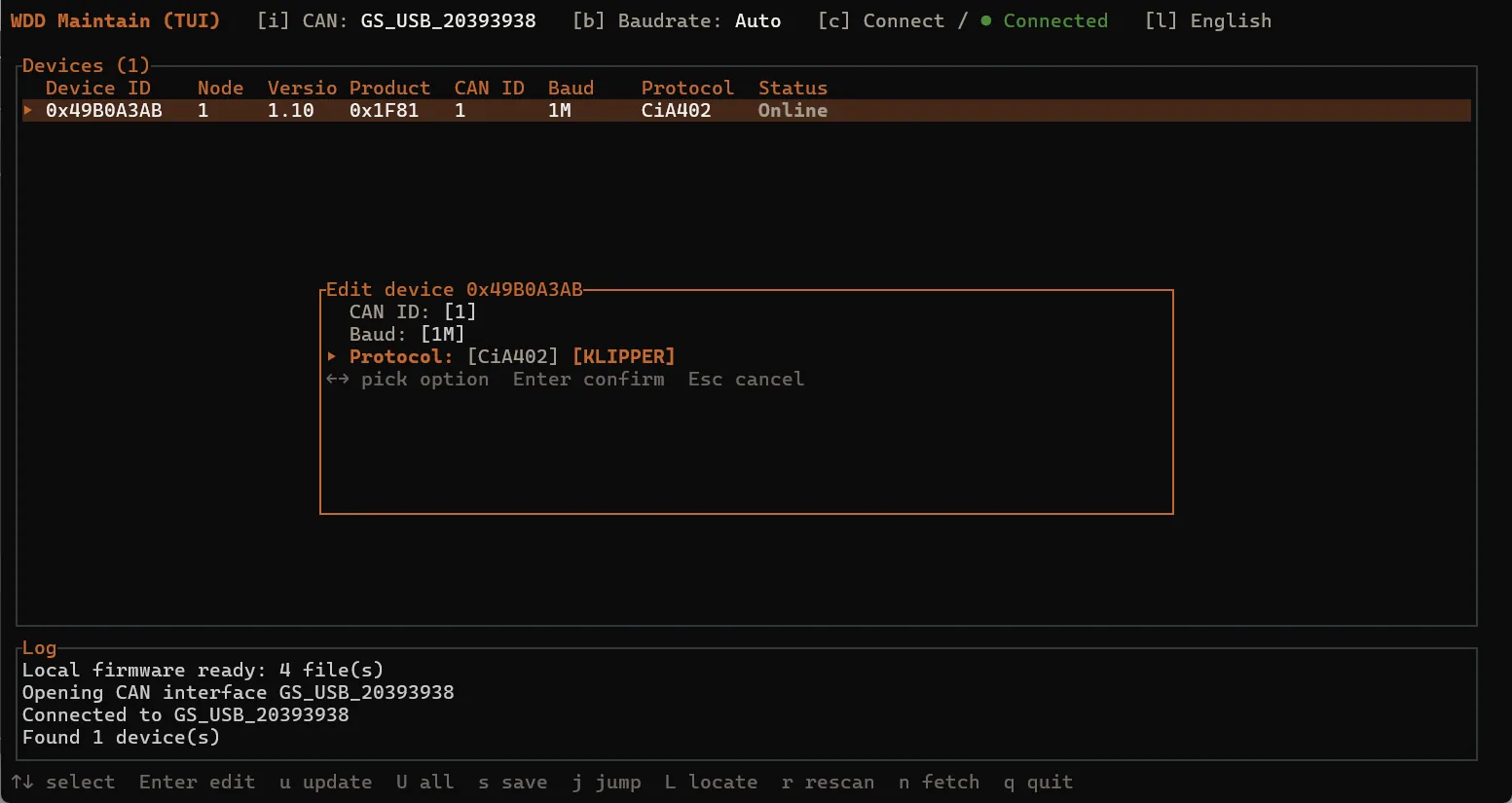
The screen has three parts: connection controls at the top (interface, baudrate, connection state), the device table in the middle, and the log and help bar at the bottom. Common keys:
| Key | Action |
|---|---|
c |
Connect / disconnect |
i |
Select CAN interface |
b |
Cycle baudrate |
↑ / ↓ |
Select a device in the table |
Enter |
Edit the selected device’s settings in place |
u |
Update the selected device |
U |
Update all devices |
s |
Save the selected device’s settings |
j |
Jump to app (leave IAP) |
L |
Locate LED |
r |
Rescan firmware |
n |
Fetch firmware from the network |
l |
Switch interface language |
q / Ctrl-C |
Quit |
While editing a device, use ↑ / ↓ to pick a field, ← / → to pick an option, Enter to commit and Esc to cancel.
Firmware Management
List the firmware loaded from the firmware directory:
wdd-maintain-cli firmware list
Fetch firmware from the network into the local directory and rescan:
wdd-maintain-cli firmware fetch
Fetching needs a network connection but not a CAN connection. Firmware for the same product and version already present locally is skipped; a failed fetch is reported as an error.
Firmware Update
Update a single device by replacing <uuid> with an ID printed by scan:
wdd-maintain-cli update DEADBEEF
Update every currently updatable device:
wdd-maintain-cli update all
Update a single device with an explicitly specified firmware zip (single device only; not valid with all):
wdd-maintain-cli update DEADBEEF --firmware /path/to/firmware.zip
A device must be in IAP (update) mode — reset or power-cycle it to enter it. Before starting, put the firmware zip in the firmware directory (or point --firmware at it).
During the update, states such as Writing / Verifying / Upgrading / Done / Failed and a progress percentage are shown.
Never power off or disconnect during a firmware update. While a device is busy updating, other operations on it are rejected.
Device Settings
Read the device’s three settings:
wdd-maintain-cli settings get DEADBEEF
Write settings (applied to RAM, effective immediately; several may be given at once):
wdd-maintain-cli settings set DEADBEEF --can-id 2 --baudrate 1000 --protocol 0
Accepted values:
--can-id: 1–127.--baudrate: 100 / 125 / 250 / 500 / 800 / 1000 (kbps).--protocol: 0 = CiA402, 1 = KLIPPER.
Persist the RAM settings to device storage (survives power cycling):
wdd-maintain-cli settings save DEADBEEF
settings setonly changes RAM and is lost on restart; to make it permanent, runsettings saveafterwards. After changing the CAN ID or baudrate, use the new values for subsequent communication.
Launch the Application
Make the device leave IAP and jump to the running application:
wdd-maintain-cli jump DEADBEEF
If it does not jump, the device stays in update mode until it is reset or power-cycled again.
FAQ
| Symptom | Likely cause | Fix |
|---|---|---|
| No CAN interface found | Interface is down | On Linux run ip link set can0 up type can bitrate 1000000; make sure the name matches --interface. |
| Device did not appear within the wait time | Device not in IAP / bus problem | Reset or power-cycle the device; check wiring, termination and baudrate, and raise --wait if needed. |
| Opening the device fails on Windows | Adapter not bound to WinUSB | Bind interface 0 to WinUSB with Zadig; WCID devices are installed automatically. |
| No device is discovered at all | Baudrate mismatch | The host baudrate must match the device (WD bootloader is fixed at 1 Mbit/s); try --baudrate 1000. |
update all --firmware errors |
Invalid option combination | --firmware is only valid for a single device; use update all to match firmware automatically. |
| Firmware fetch fails | Network unavailable | Check the network and retry. |
| Settings are lost after restart | Only RAM was written | Run settings save <uuid> to persist them to device storage. |
Next Steps
- The complete graphical application: wddrive-studio
- Wiring, connecting and first motion: Quick Start
- The standard CiA-402 state machine and operating modes: CiA402
- Using WD DRIVE motors under Klipper: Klipper